![Rocketscreens-logo-for-kb-2.webp]](https://knowledge.rocketscreens.com/hs-fs/hubfs/Rocketscreens-logo-for-kb-2.webp?height=45&name=Rocketscreens-logo-for-kb-2.webp)
Overview
This guide explains how to configure and display the Day Counter app in RocketScreens.
Prerequisites
- RocketScreens admin/editor access
Step 1: Open Apps in RocketScreens
- Log in to RocketScreens CMS.
- Go to Apps.
- Click Create App.
- Select Day Counter.
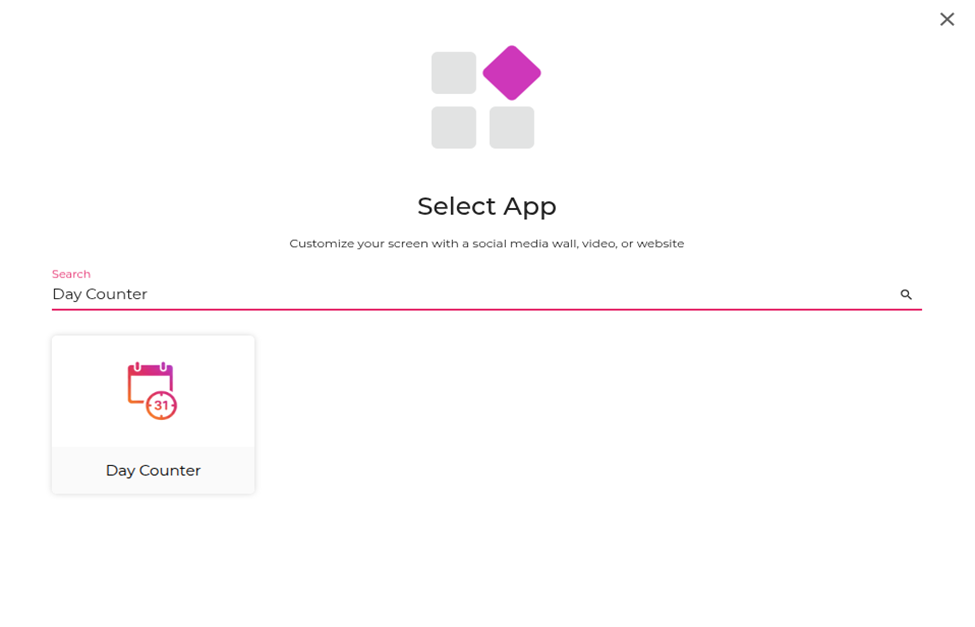 Step 2: Configure Day Counter App
- Enter the app name.
- Set the date and text fields required for your counter message.
- Choose background/image and visual styling options as needed.
- Save the app.
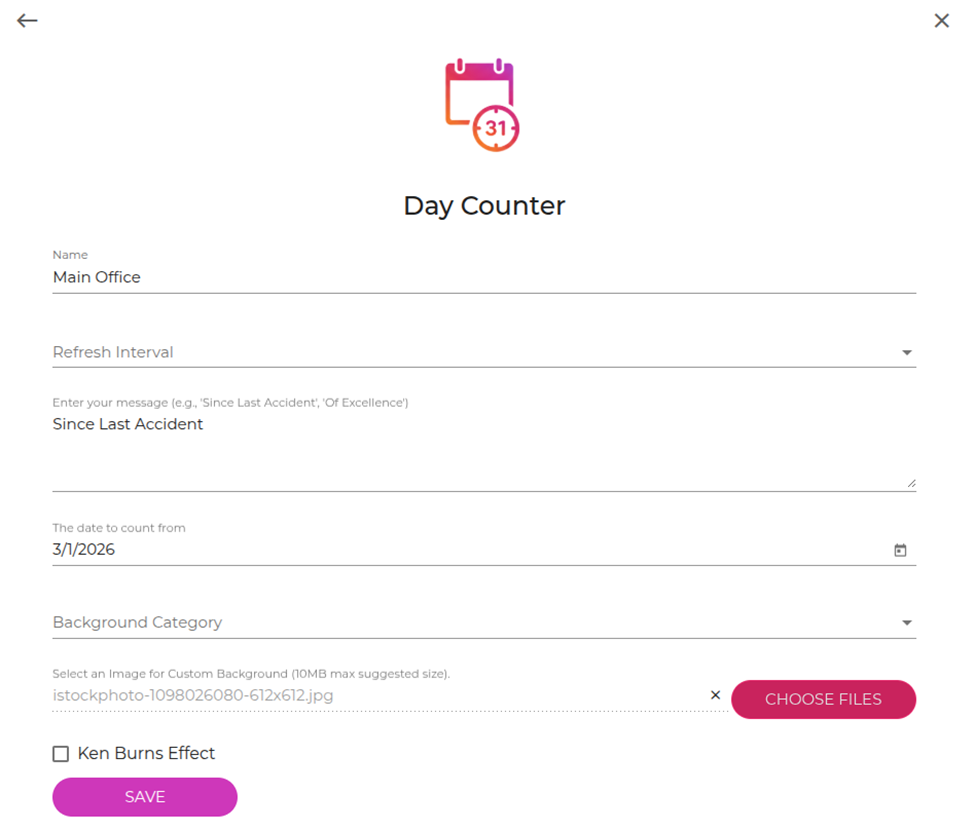
Step 3: Add to Playlist
- Go to Playlists.
- Open an existing playlist or create a new one.
- Add the Day Counter app to the playlist.
- Set slide duration and order.
Step 4: Assign to Player
- Go to Players.
- Assign the updated playlist to target player(s).
- Confirm playback on live screens.