![Rocketscreens-logo-for-kb-2.webp]](https://knowledge.rocketscreens.com/hs-fs/hubfs/Rocketscreens-logo-for-kb-2.webp?height=45&name=Rocketscreens-logo-for-kb-2.webp)
RocketScreens provides multiple pathways to deploy your digital signage, and the Web Browser Player is the fastest go-to-market option. It allows you to run screens directly in a TV’s browser, no hardware procurement, no installations, no dependencies.
Whether you have a Smart TV with a built-in browser or are running a browser session through devices like Chromecast, Fire TV, or a desktop PC, this method gets your screens live quickly.
This approach is ideal for pilots, employee breakrooms, internal signage, and screens without access to Google Play or Amazon Appstore.
Below is the end-to-end workflow to activate a Web Browser TV Player in RocketScreens.
Step 1: Access the Player Setup Menu
- Log into the RocketScreens CMS:
https://app.rocketscreens.com - Navigate to Players
- Select Create Player in the top right
- Choose WebTV Player from the modal options
You’ll now open the Web Player registration workflow.
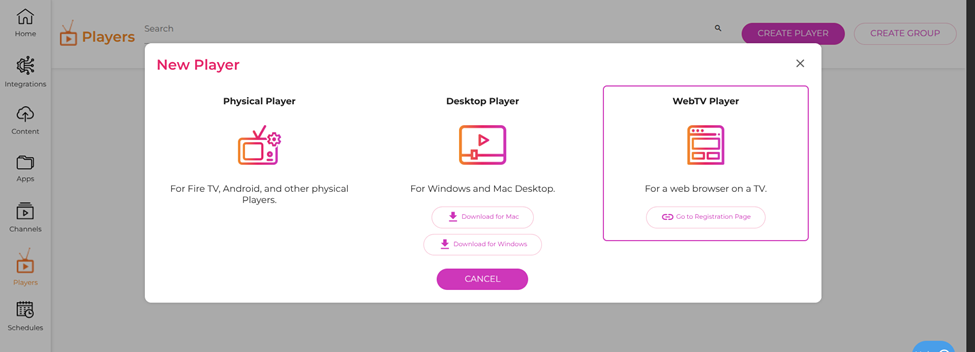
Step 2: Generate a Registration Code on Your TV
You’ll need a browser running on the TV or device you want to connect to.
- On that browser, open:
https://live.app.rocketscreens.com/pair/ - A unique Registration Code and QR code will be displayed
Example format: AB1-CD3
This code uniquely binds that browser session to your account.
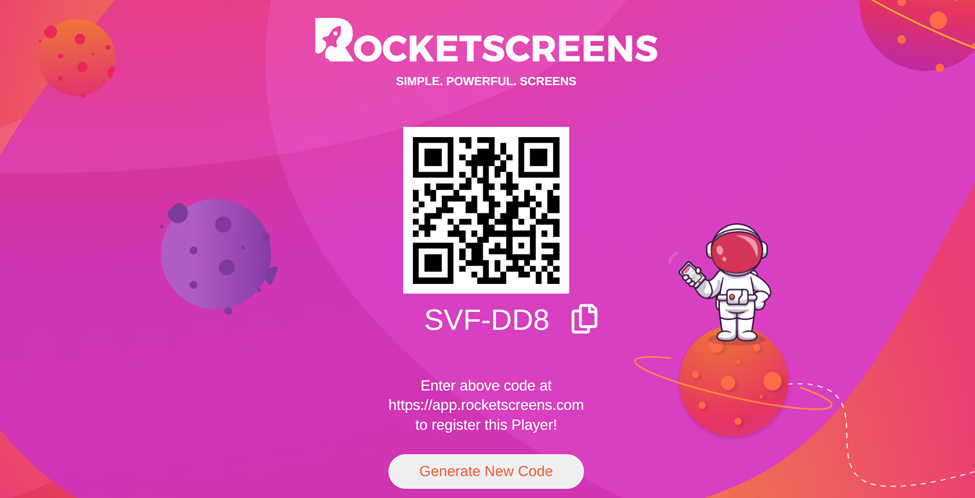
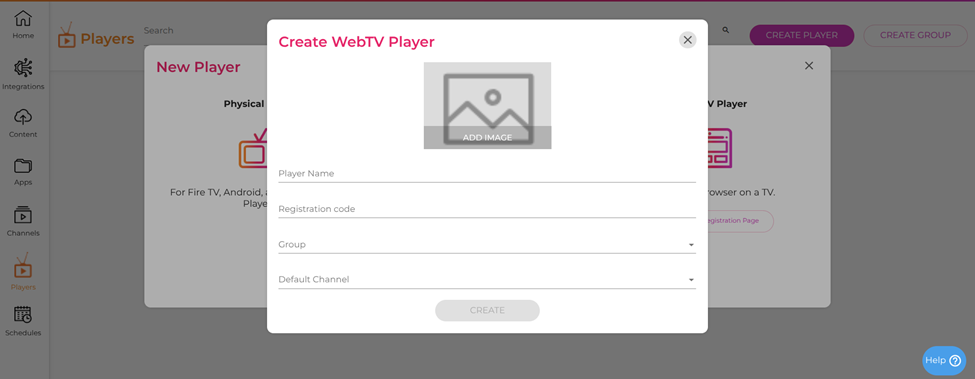
Step 3: Create the Web Player in the CMS
Back in the RocketScreens CMS:
- Enter a recognizable Player Name (e.g. Lobby WebTV, Cafeteria Screen 2)
- Input the Registration Code shown on your TV
- Optionally assign Group
- Add Default Channel to auto-start playback
- Click Create
If the registration code is correct and the browser is active, the Player will bind instantly.
Step 4: Confirm the Connection
Once created:
- The screen should automatically refresh
- Assigned content begins playing
- The Player appears in CMS.
If no default channel was set, simply assign one after creation from the Players list.
Operational Notes
|
Capability |
Supported |
|
Remote control from CMS |
Yes |
|
Play any RocketScreens content |
Yes |
|
Offline playback |
No |
|
Automatic restart on browser crash |
No |
|
Local remote control |
Limited to browser controls |
For unattended or mission-critical locations, a Physical Player (Fire TV/Android) is still the recommended deployment strategy.
Scaling Strategy
Repeat the above workflow for each browser-based screen.
For bulk rollout enablement and domain-restricted access policies, contact:
support@rocketscreens.com